Tennis Analytics App
Note: pictures can be clicked to bring up lightbox
Link to the site: https://tennis.tjiang.dev/
Motivation
I wanted to create a website to show tennis player analytics with fast performance. I’ve found that the best apps to create for learning purposes are in domains that are relatively well known, but still with interesting trade-offs to make.
Domain
I have a database of tennis data. It includes information about individual players, rankings, matches, and doubles. Rankings are calculated by year.
Matches take place in tournaments, and are differentiated by surface (clay, grass, hard). Round and score information is kept for each match. Doubles are matches, just with 4 players (2 v 2).
Stack Choices
- Next.js for the frontend
- Postgres for storing
- Fastify for the backend
- Shadcn, Radix UI, Tailwind
- Downshift
- TypeScript throughout frontend and backend
I chose Next.js, both because it would be well-suited for the use case and because it would be a learning opportunity. I imagine this app to be SEO-friendly, to be easily scanned by search engines. Queries are encoded into the URL, and easily shared.
I chose SQLite initially, but then discovered it has speed issues. Certain queries were very slow, even with the addition of indexes. I switched to Postgres, which dramatically increased speed.
I chose Fastify and Node.js for the backend. I chose Node due to its high performance and ease of writing. I could’ve gone with Python, but that would’ve offered no performance benefit. I could’ve also gone with other choices, like a Java based backend, but I think any speedup would have been minimal, as for this app, main. I chose Fastify specifically because it’s the most performant of the modern Node.js frameworks, and has conventions similar to Express.
I could have run database queries directly in Next.js Server Components and skipped Fastify entirely. But Server Components are a poor fit for interactive UI like paginated tables — every page change would trigger a server re-render, destroying and recreating the table rather than keeping the component mounted and swapping data. A dedicated API endpoint lets the table live on the client and simply fetch what it needs. That API could have lived in Next.js Route Handlers, but I chose Fastify to keep the backend independent and avoid tying the API layer to the frontend framework. The tradeoff is a marginal performance difference on server-rendered pages, which I think is worth the cleaner separation.
This points to a tension that runs through all Next.js development: knowing which parts of an app belong on the server and which belong on the client. The framework gives you heuristics, but the line isn’t always obvious — especially for features that need both server-rendered initial data and client-side interactivity. It’s the kind of architectural question worth settling early in a project, before it starts making the decision for you. The component of Server Components in Next.js is not a strict superset of React, so one has to verify it’s the right choice before using it. The real fear is that, using Next.js, you want to reach for Next.js tools where they could prove to be a mismatch.
For the frontend, I chose shadcn with Radix UI. Base UI had many issues, which I was aware of in the past. For instance, getting the select to show the label is not trivial. Also, the dropdowns for the selects did not show under the button. Base UI felt very incomplete to me, so I went with the more stable Radix UI. I chose Tailwind because it worked well with shadcn. I did have to do some manual overrides in Tailwind to get select height and text input height to be the same, but that was a good learning experience as well.
I knew for some use cases I needed to have a typeahead, for which regular combobox in shadcn did not suffice. I chose Downshift, which was headless and fit into the existing design paradigm well, but also highly featureful. It supports keyboard navigation in addition to clicks.
TypeScript allows for the sharing of type data between backend and frontend, or at least having them in a common language, which I find very helpful.
Development
I used an open dataset of ATP tennis data (which existed in CSVs). I initially loaded them into SQLite using Python, to get a database of around 500MB. I then created an initial Next.js app and a Fastify backend.
PRQL
When creating the backend, I tried out PRQL. It had always been something that I had been interested in using, as a better written version of SQL.
from players
filter player_id == $id
select {player_id, name_first, name_last, ioc}
However, it didn’t work out as I expected. It turns out that it can’t take in a variable for its take which is the equivalent to limit in SQL. The fix was not elegant, so I went back to regular SQL. I think it’s mainly nice for data analysts, but in development with query builders, perhaps using CTEs to simplify is the way to go.
I think ORMs don’t really make sense here. I have complex analytical queries, not traversal relationships, which is where ORMs really shine.
Postgres
After testing out the initial Next.js/Fastify/SQLite app, I discovered certain queries were very slow. So I moved all the CSV data to Postgres. Postgres turned out to be much faster. I think this was due to a few reasons: trigram index for searching (players can be searched by name) and a better Postgres query planner. I installed pg_trgm to help with trigram indexing, which helps speed up text search. It required no query changes, so it’s easy to add on.
For certain endpoints, I created caches in Fastify. However, Redis would be used in the future. Certain queries like the list of countries never change, so those can be cached.
Deployment
I’m using nginx on a DigitalOcean server, with ufw and rate limiting. I considered using Fly.io and other managed options, but they were either too slow or expensive for what I needed. My main consideration after cost is security, and because this is read-only, main security concerns are preventing spamming. I implemented rate limiting on nginx and blocked incoming connections to other ports, which serves as a bit of a soft.
If I had write endpoints, I’d reach for AWS API Gateway (for schema checks) and Cloudflare. Main downsides I see to API Gateway are maintaining the schema, and the fact that some schemas are too complex to be expressed. On a high-traffic site, one likely has to use load balancers to distribute to several app servers. Load balancers then would need to prevent DDOS as well, where it’s no longer enough to have per-IP limits, but rather being able to identify quickly which IPs to drop and which are legitimate. One has to detect ever-changing patterns of botnet behavior. This is typically handled by Cloudflare or AWS WAF.
I also noticed some crawlers visiting my site immediately after deployment, so I would also include robots.txt as well.
App Navigation
We have a tab interface w/ 4 different tabs.
Rankings gives you the rankings of players by year. It contains filters for country and year. You can click on the individual player link to bring up a modal that contains a link to go to the profile page. You can also see the difference between this year’s ranking and last year’s ranking, which is provided by the green and red arrows.
Players gives you the ability to search players by country, name and handedness. You can see their name, country, and height in the table. It’s also the route under which you can see the profile of an individual player. You can click on a player in the table to bring up the same player overview modal as in rankings. The full profile page contains career stats that are calculated from the database, alongside match history which is also searchable.
Matches provides a list of matches. You can look for matches containing a particular player, or between two particular players. You can also filter by year, surface, level, round, and match type (tournament vs quals). Again, you can click on the player to get the overview modal. The player search is a typeahead, not just a plain text input.
Finally, Doubles tab provides a list of doubles matches. Again, you can filter by year, surface, level, and round. Players link works here as well.
For each filter form element (such as select or typeahead), you will see it being disabled while the app fetches from backend, to provide the user some feedback and to prevent further queries while still loading.
Every filter change changes the URL query params, so the particular query can be copied & pasted for sharing/permanence.
AI Usage
The app includes an “Ask” tab: a natural language interface where a user can type a question and get a structured answer backed by a real SQL query. The naive approach — one prompt, one SQL query — fails too often. The model hallucinates column names, answers questions the schema can’t support, or confidently queries for data that doesn’t exist. A multi-step pipeline solves this by catching failures early and keeping each step narrow.
The pipeline has five stages:
1. Scope detection. Is the question about ATP tennis at all? A question about comparing Djokovic to Nadal is in scope; a question about the weather is not. This is a cheap classification call that short-circuits immediately on off-topic input, before any heavier processing.
2. Entity resolution. The LLM extracts player and tournament name mentions from the question — “Federer”, “Wimbledon”, etc. Then a deterministic fuzzy search resolves each mention against the actual database. This step is intentionally split: the LLM is good at identifying what the user is referring to, but the database is the authority on whether it exists. If a mention resolves to zero candidates or multiple ambiguous candidates, the pipeline short-circuits with a needs_clarification response rather than proceeding on a guess.
3. Coverage check. Distinct from scope detection. A question can be on-topic but unanswerable given the schema — “Who was Federer’s coach at Wimbledon?” is a legitimate tennis question, but if the database doesn’t have coaching data, the question can’t be answered. This step checks answerability against the actual schema before attempting SQL generation.
4. Classify, generate SQL, and pick a template. A single structured LLM call returns { template_id, sql, summary }. The template ID determines how the response is rendered — a two-player comparison, a single player stat, a tournament result — each with its own layout. The SQL is generated here with full context: the resolved entity IDs from step 2, the confirmed schema coverage from step 3.
5. Execute SQL. Deterministic, no LLM involved. If execution fails, the error is fed back into step 4 for one retry. If the retry also fails, the pipeline gives up rather than hallucinating a response.
The model throughout is GPT-4o mini — fast and cheap enough for a five-stage pipeline where most stages are short classification calls. The response templates mean the frontend isn’t rendering raw LLM text; it’s rendering structured data into known layouts, which keeps the output consistent and avoids formatting drift.
It is crucial to keep costs down, and to use the most efficient model for each step, and in general, to improve your workflow. You must understand your workflow well to know where you can skimp, and where you can’t. Stages 1–3 (scope, entity extraction, coverage) are simple classification tasks that a cheap model like Haiku handles well, while stage 4 (SQL generation) is the one that actually needs a stronger model.
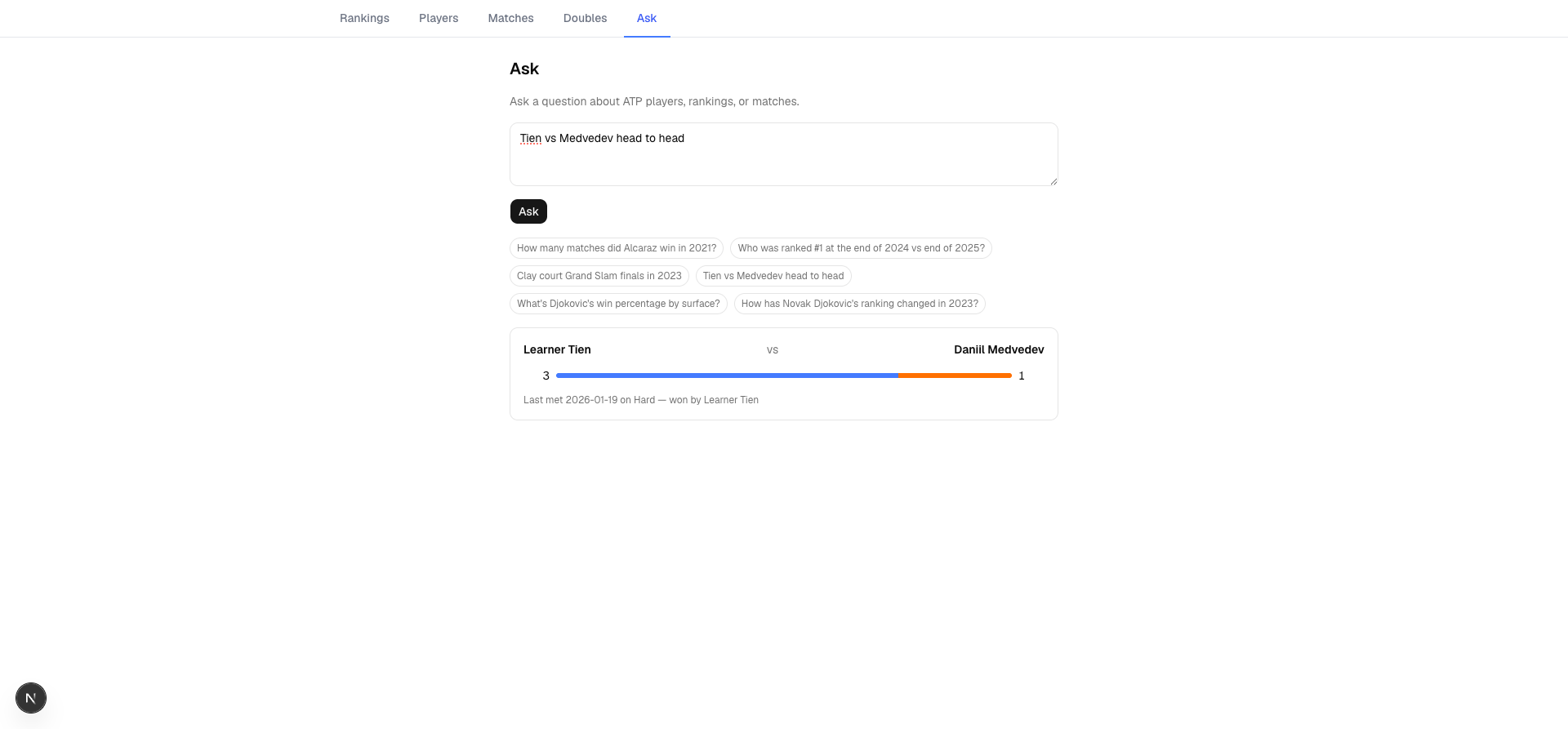 Head to head comparison (about specifically the instances when player A played against player B)
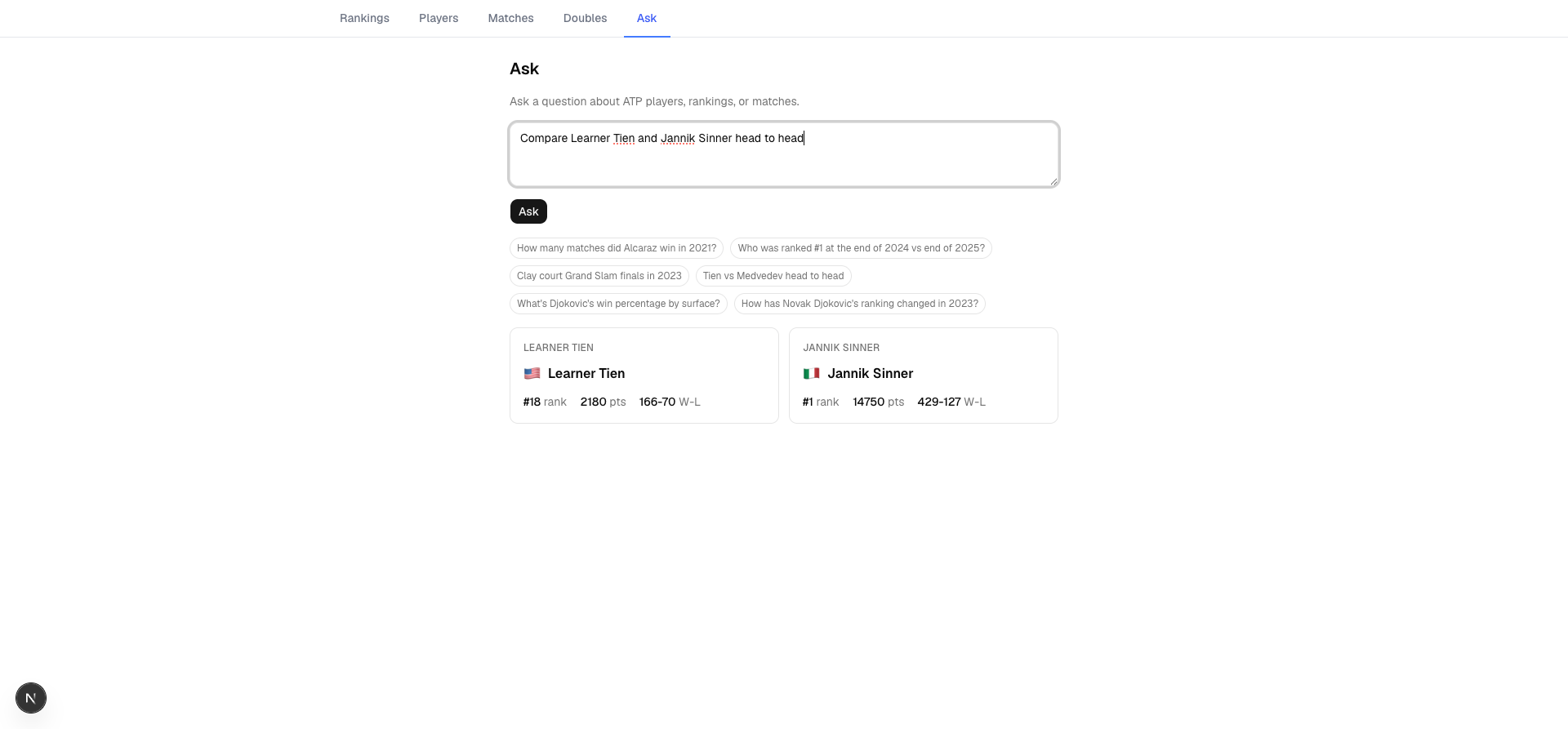 Two player comparison
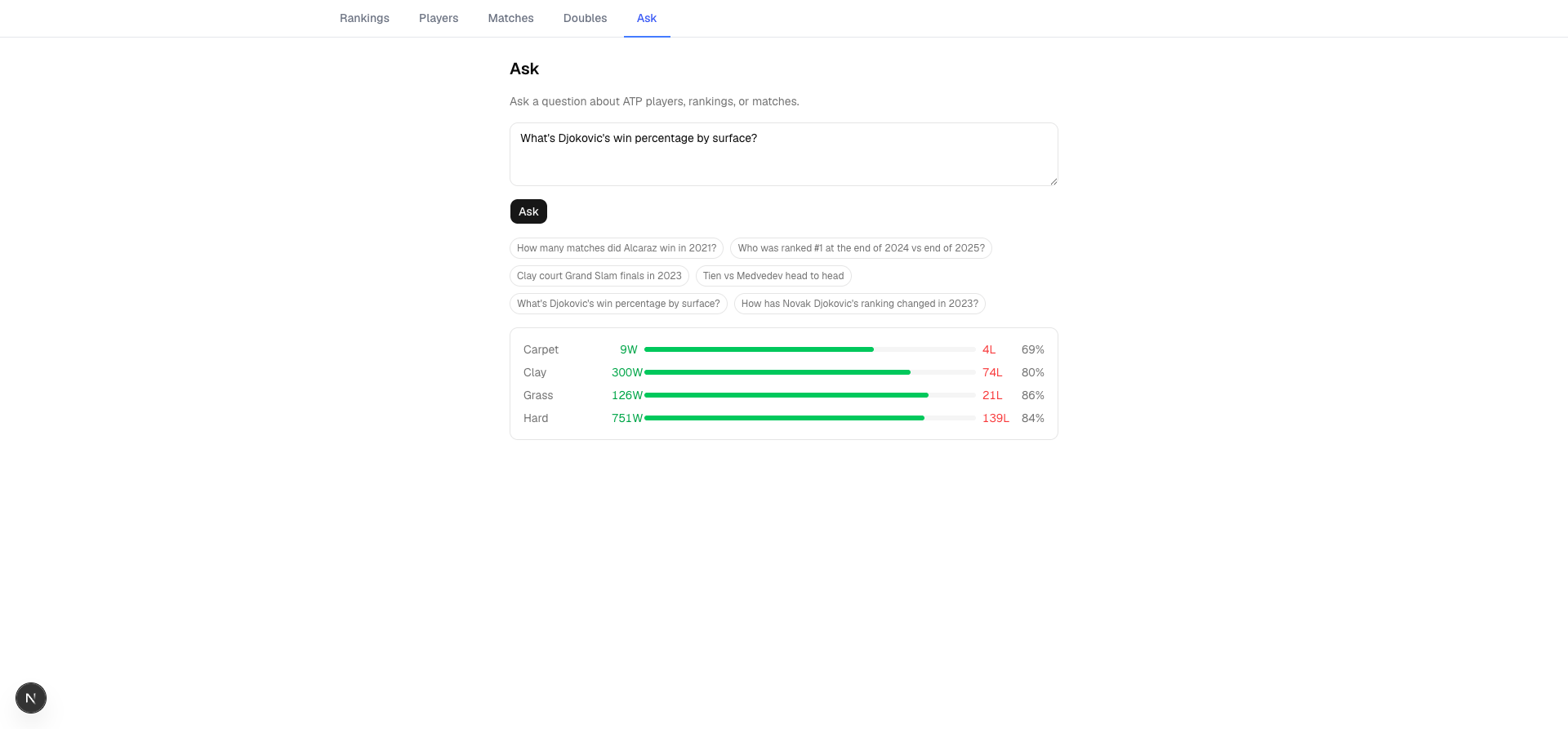 Surface breakdown
Custom UI
I also implemented an interface for clarification. In the “entity resolution” step, the LLM returns which entities (could be tennis player names, tournament names) need clarification.
One of the trickier problems in building a natural-language-to-SQL interface is what happens when the natural language itself is ambiguous — not a parsing failure, but a multiple-choice situation the system can’t resolve on its own. If a user types a name that could refer to two different players, or a term that maps to several possible database entities, the tempting shortcut is to just guess: pick the most likely match and move on. But a wrong silent guess is worse than an obvious failure, because the user has no idea the system misunderstood them until the results look subtly off.
Instead, I built a clarification UI: when the system detects more than one plausible interpretation, it surfaces the candidates directly and lets the user pick, rather than resolving the ambiguity invisibly. The tradeoff is friction, as you’re asking the user to do a small amount of work the system could have guessed its way around, but the payoff is trust. A system that occasionally says “did you mean X or Y?” is more usable in practice than one that’s silently wrong some percentage of the time, because you can actually rely on the answers it does give you without double-checking them. It’s a small piece of interface, but it’s really a design statement: given that language is inherently ambiguous, the right move isn’t to eliminate ambiguity through better guessing, it’s to make ambiguity visible and cheap to resolve.
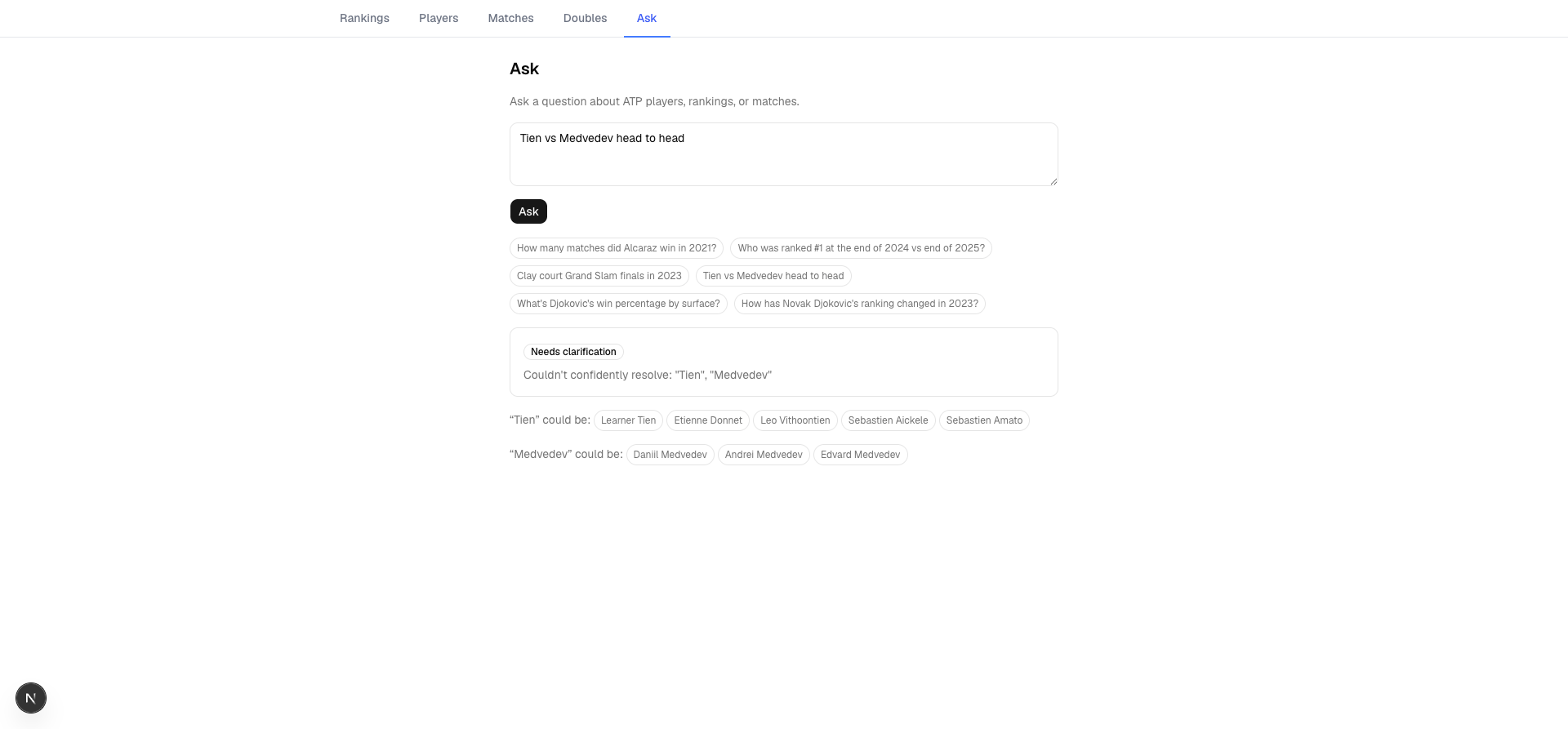 Clarification UI
What I Learned
I used Next.js for the first time, which was a great learning experience. I got an intuition about the when to pick between server side and client side rendering, and the concept of writing React Server Components.
I used advanced Postgres features like CTE (which can capture expressions as a variable name), and window functions. Window functions are useful in computing the rank change. I used EXPLAIN ANALYZE to look into the query planner.
Screenshots
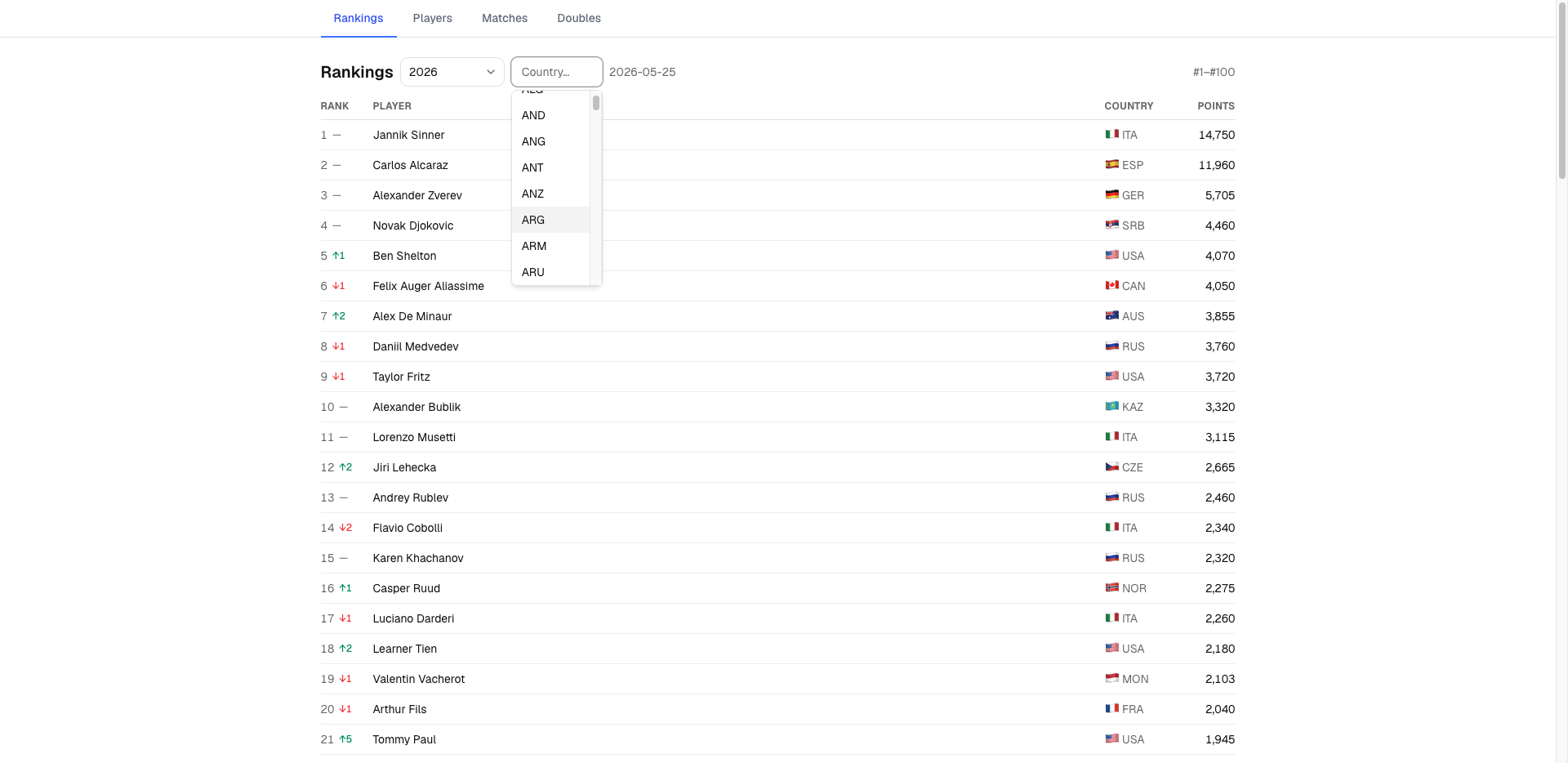 Rankings tab
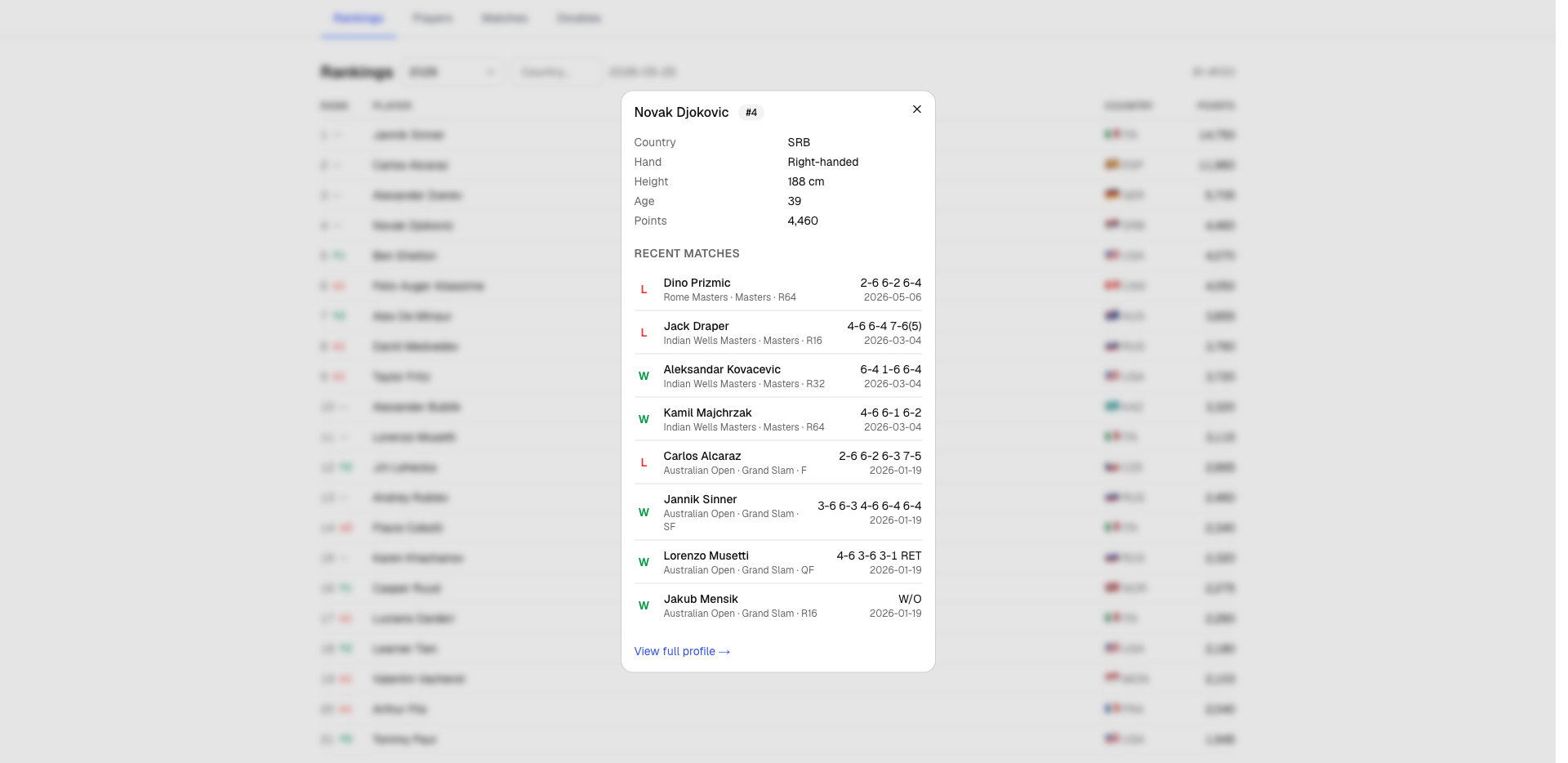 Player preview modal
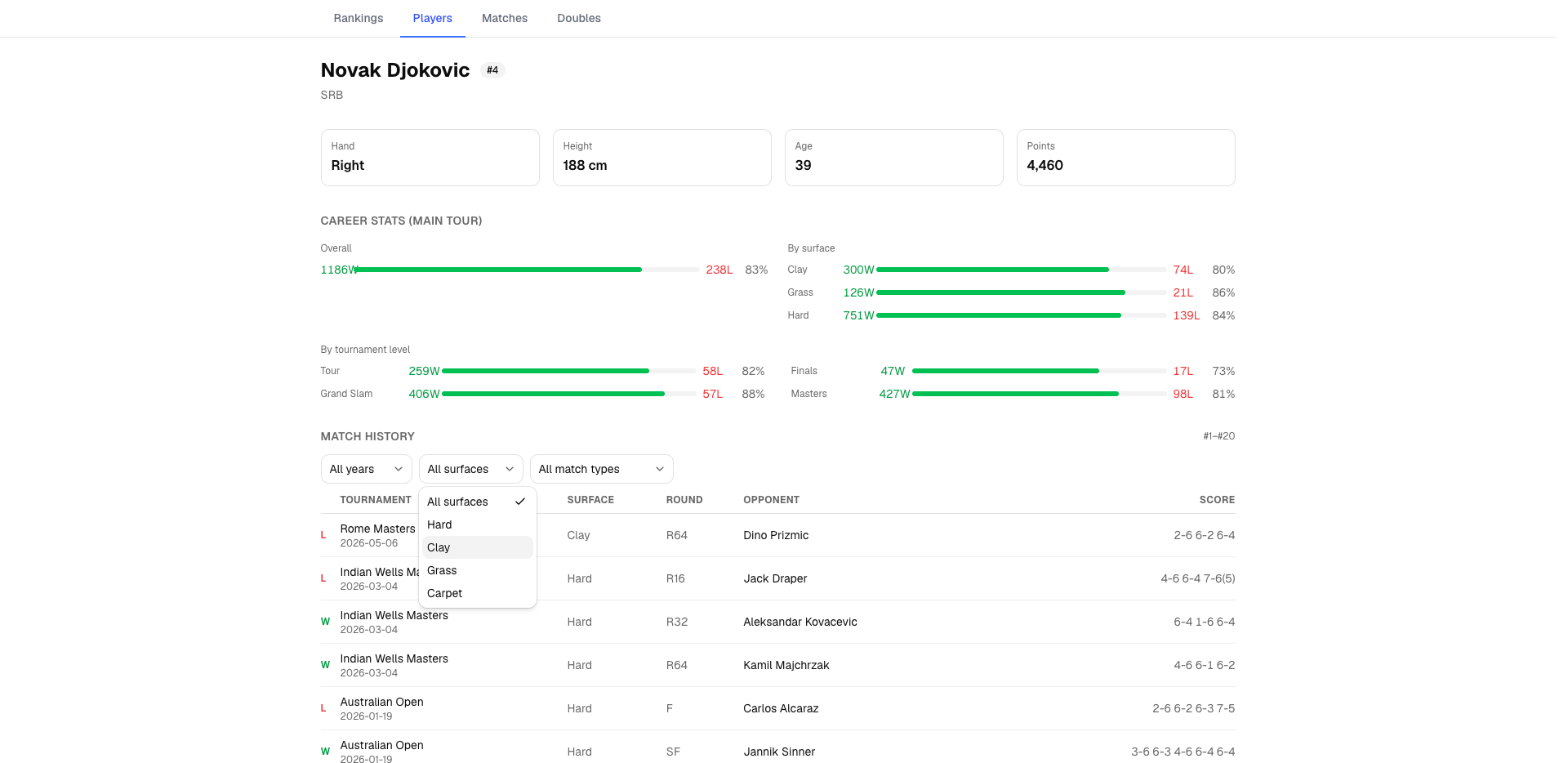 Player page
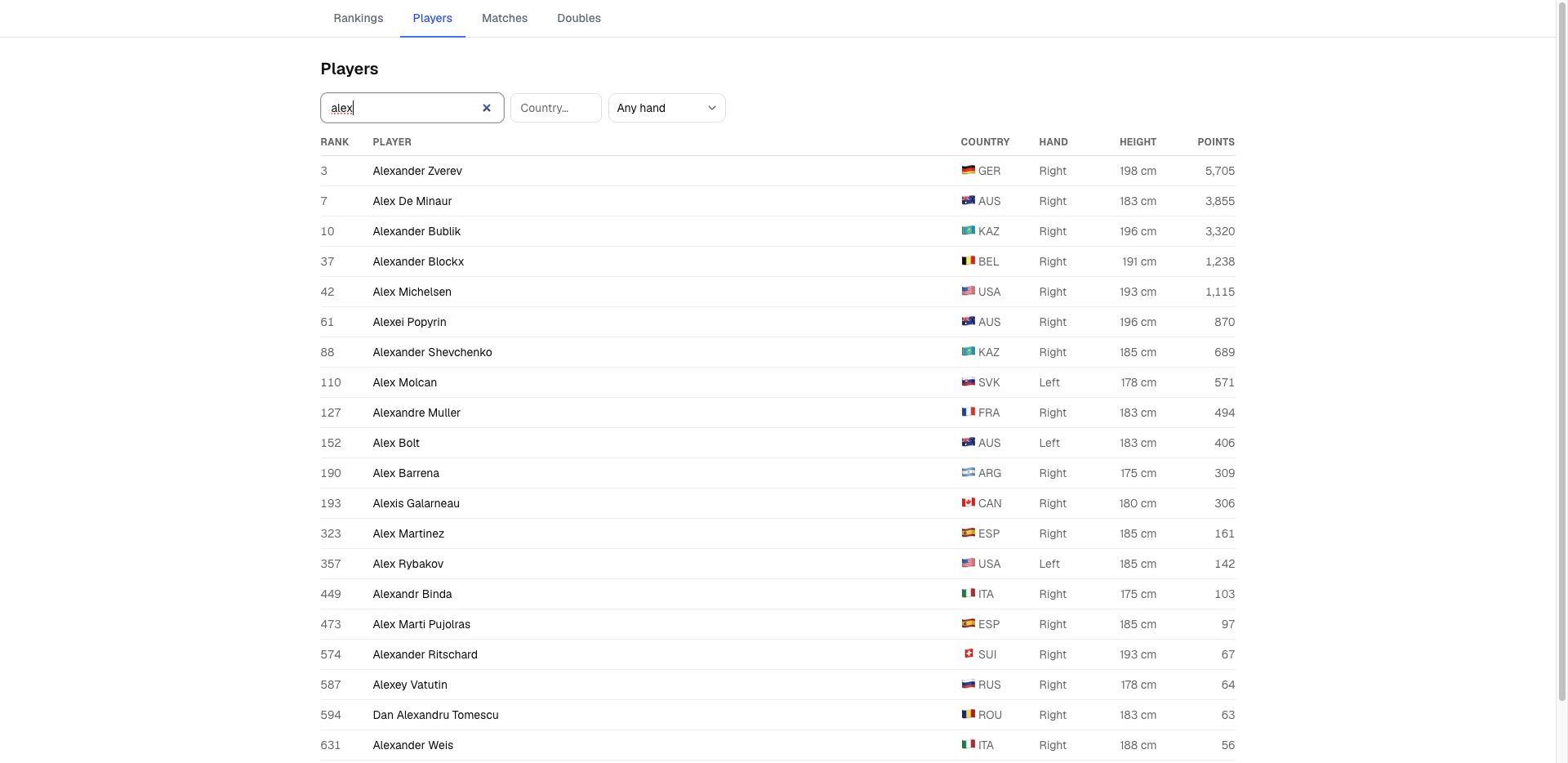 Players tab
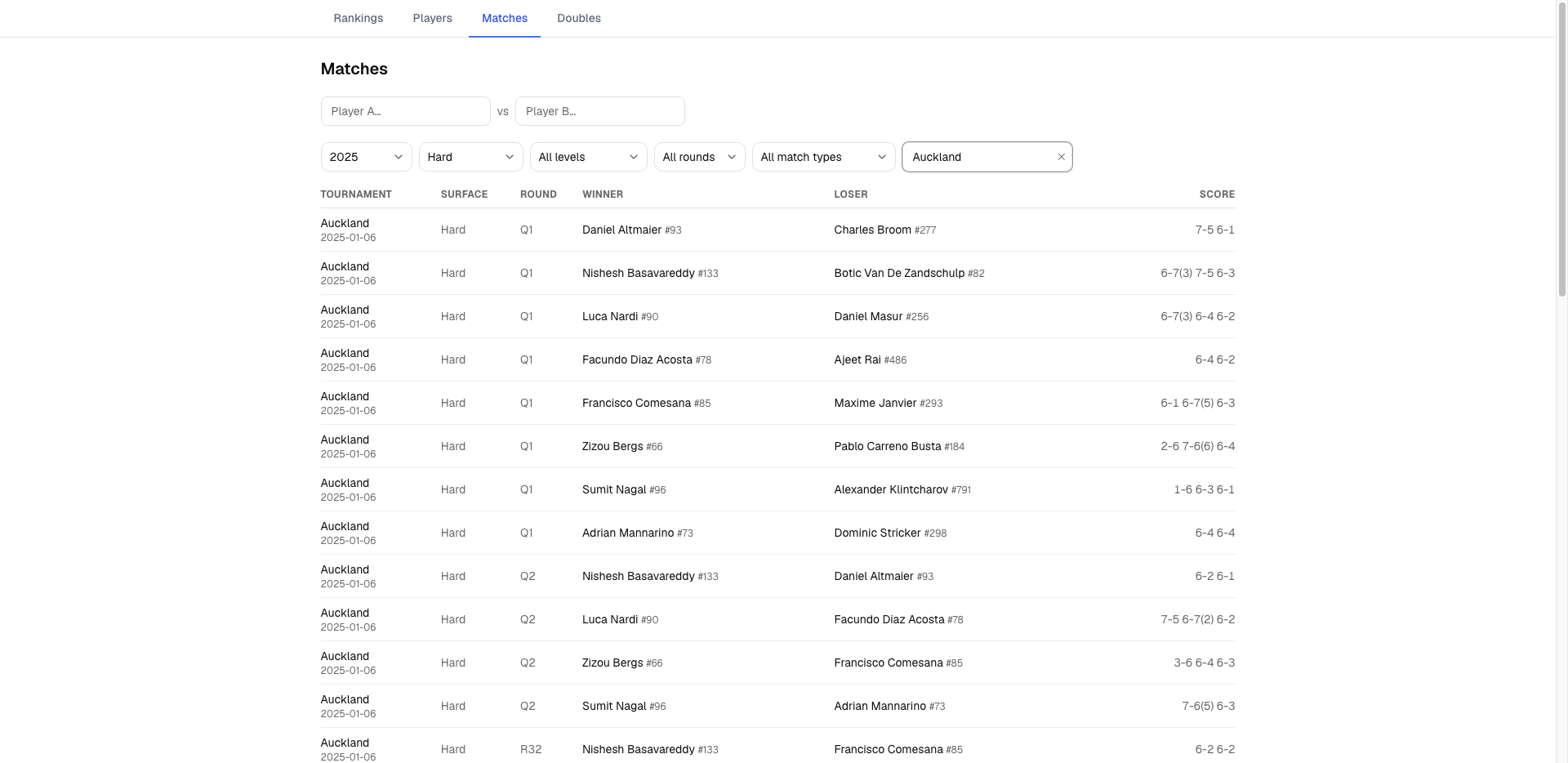 Matches tab
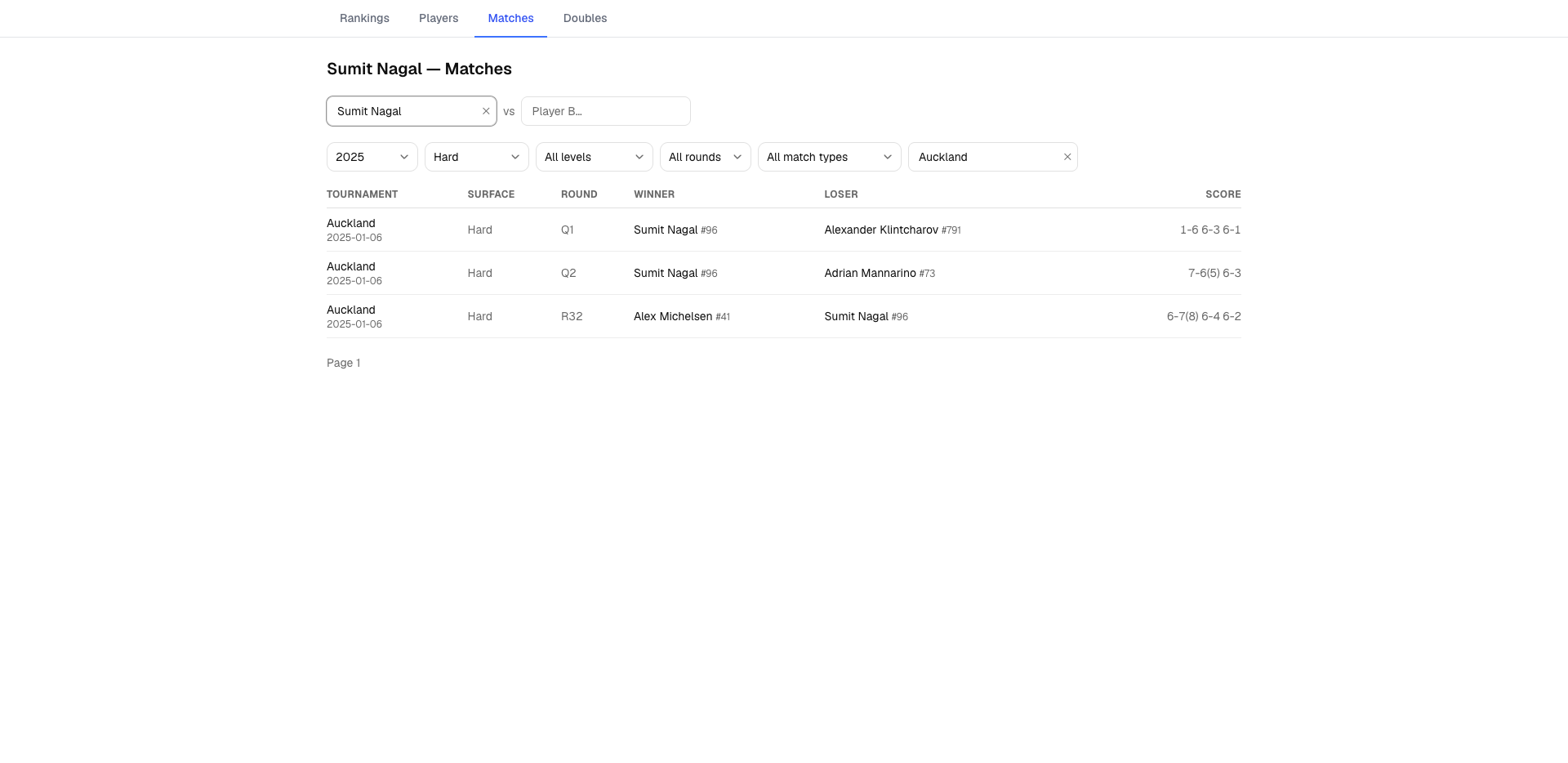 Matches tab search operation
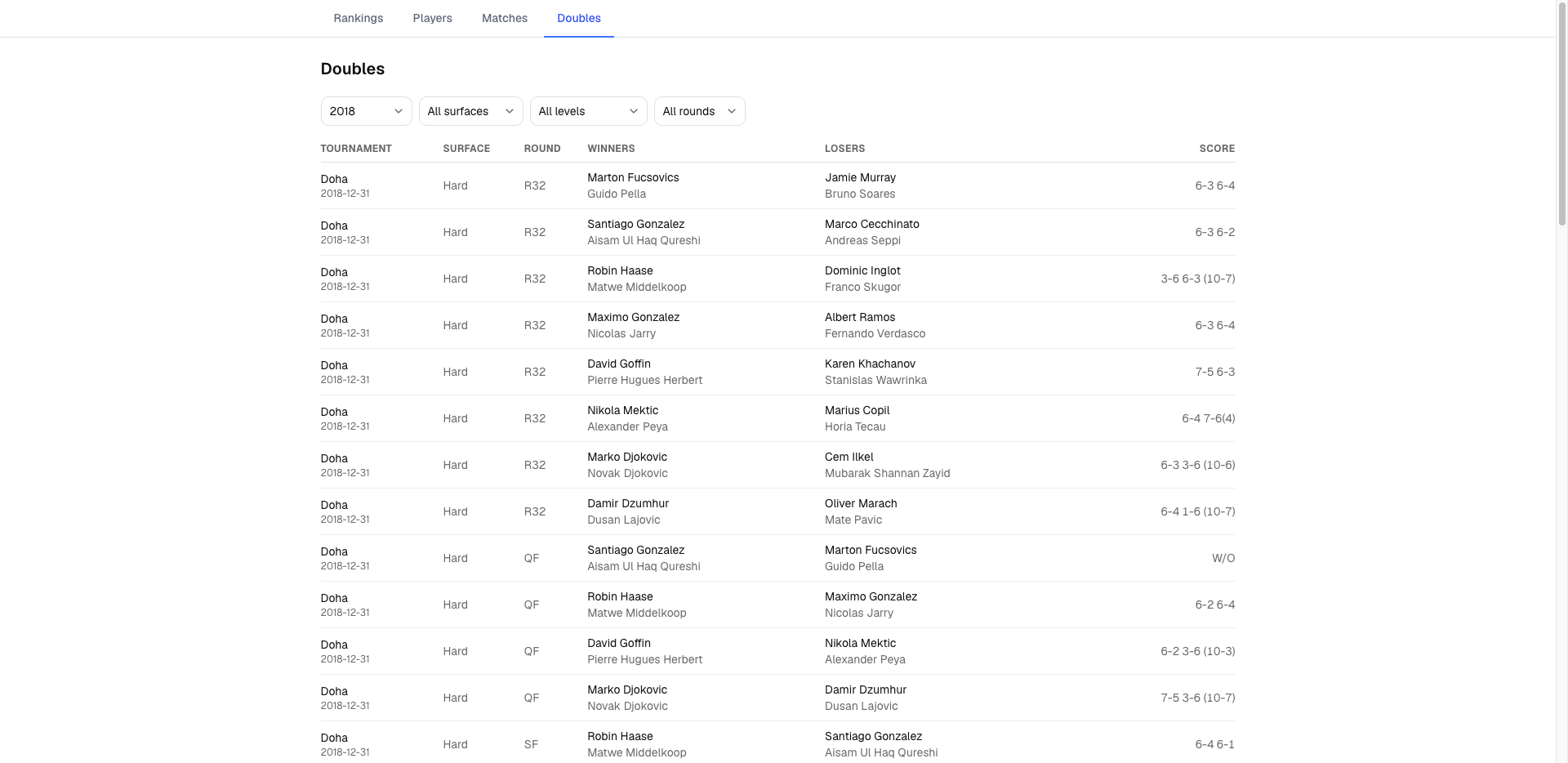 Doubles tab